How to Install Fonts on Linux the Right Way in 2026
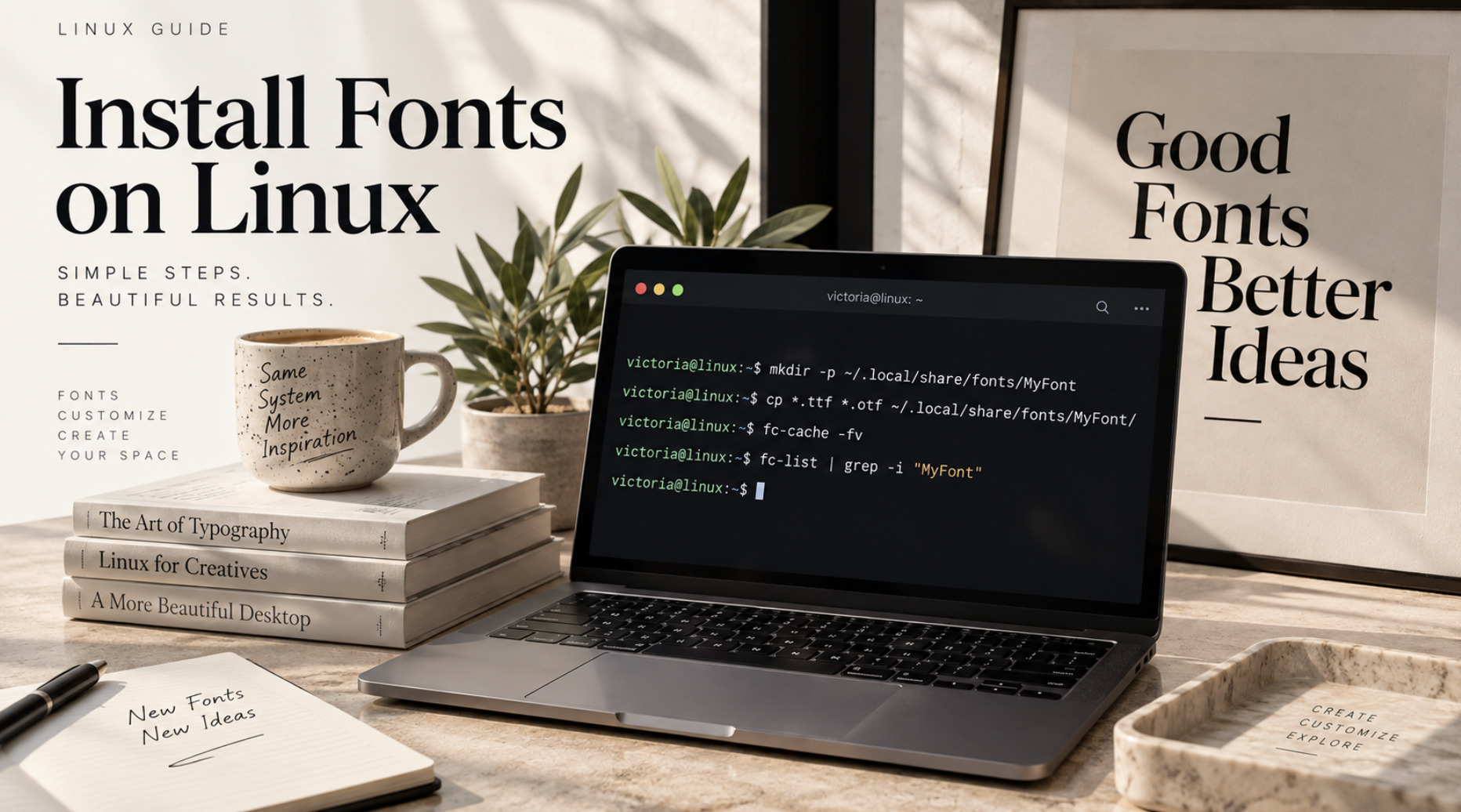
Installing a font on Linux takes about thirty seconds when you know where the file goes, and it can eat an entire evening when you do not. The font sits in your Downloads folder, the application refuses to show it, and every forum answer suggests a slightly different folder.
This guide gives you the one method that works on practically every distribution, the variations you may need, a verification step that ends the guessing, and a troubleshooting table for fonts that stubbornly refuse to appear. It also covers what has changed recently, including GNOME's new default fonts and the fading of old font formats.
The quick answer
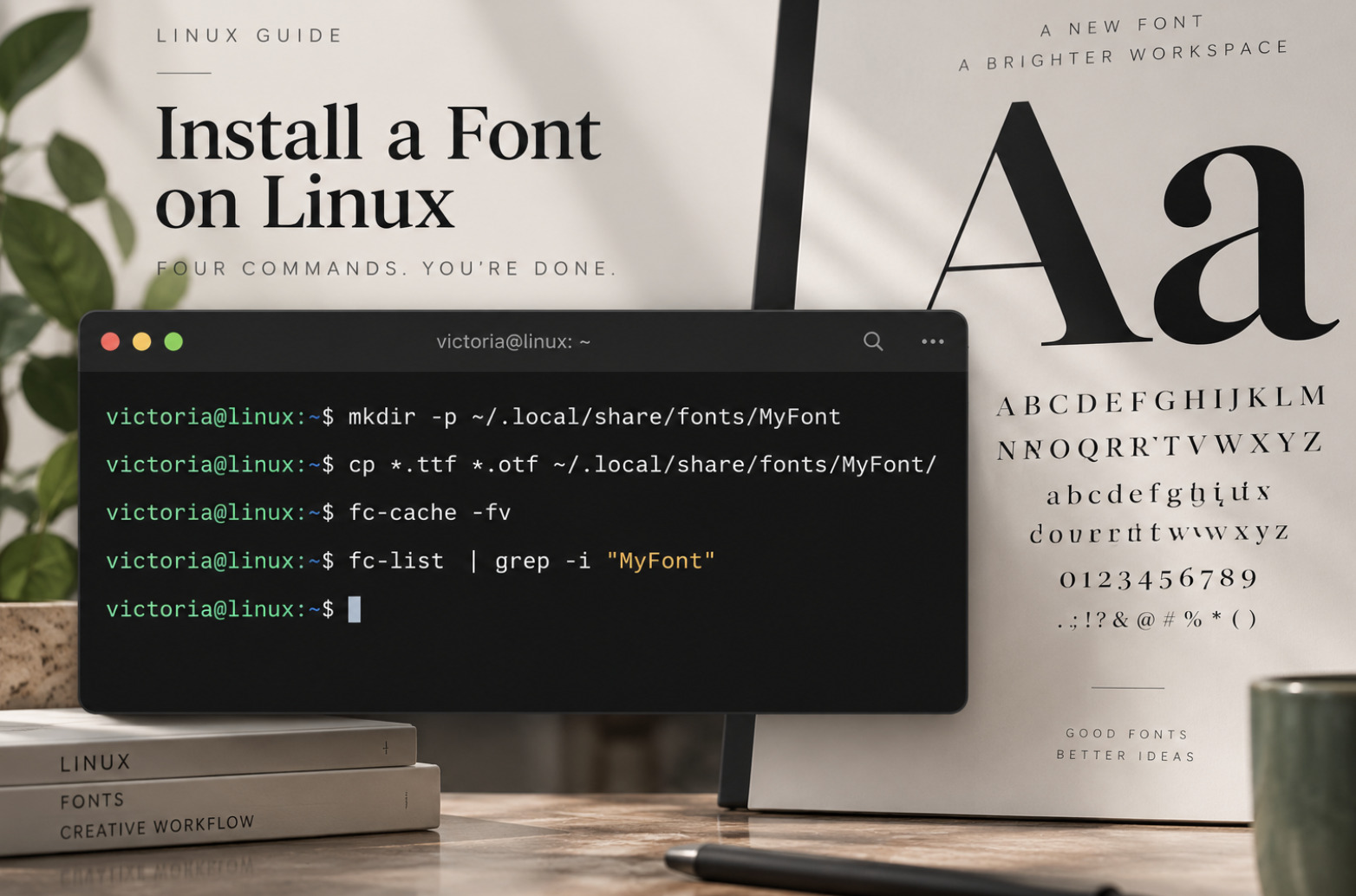
For a single user account, which is what most people want, run these commands from the folder that holds your font files.
mkdir -p ~/.local/share/fonts/MyFont
cp *.ttf *.otf ~/.local/share/fonts/MyFont/
fc-cache -fv
fc-list | grep -i "MyFont"
Restart the application you want to use, and the font appears in its font menu. If the last command prints your font, the installation worked at the system level, and any remaining problem lives in the application. The rest of this article explains why this works, how to do it system-wide, and what to check when it fails.
How Linux finds fonts
Almost every Linux desktop and application relies on a library called fontconfig to discover fonts, match font names to files and choose fallbacks. Fontconfig scans a small set of directories and builds a cache so applications do not have to read every font file at startup.
The directories fontconfig knows by default are:
/usr/share/fonts holds fonts installed by your distribution's packages.
~/.local/share/fonts is the per-user location and the one to use for your own fonts. It follows the XDG base directory convention.
~/.fonts is the old per-user location. It is deprecated, so it may keep working for now, but new installations should avoid it.
/usr/local/share/fonts is the conventional place for system-wide fonts you add by hand. Most distributions scan it, though it is worth checking on yours.
Fontconfig scans these directories recursively, so you can organize fonts into subfolders such as one folder per family. You do not need to register a font anywhere. Copy the file into a scanned directory, refresh the cache, and fontconfig picks it up.
The cache is what causes most confusion. If the cache is stale, a font can be physically present and still invisible. That is why the fc-cache command appears in almost every tutorial.
What has changed recently
If you learned font installation years ago, three changes are worth knowing.
The old folder is on its way out. The ~/.fonts directory is deprecated upstream, and some setups, including NixOS, no longer read it at all. The XDG location ~/.local/share/fonts is the safe choice everywhere.
GNOME changed its default fonts. GNOME 48 replaced Cantarell as the interface font with Adwaita Sans, a modified version of Inter. It also introduced Adwaita Mono, a customized version of Iosevka, as the new default monospace font in place of Source Code Pro. Distributions that follow upstream GNOME inherit the change, while Ubuntu continues to ship its own font by default. If you prefer the new look on a distribution that does not use it, the project publishes ready-made font files that you can install with the method in this guide.
Old formats have lost support. Since Pango 1.44, GTK-based applications no longer render Type 1 fonts or bitmap fonts. A .pfb file may install cleanly and appear in fc-list, and it can still be missing from a GTK application. Bitmap glyphs embedded inside OpenType fonts are the exception, and they still work.
Which font files you can install
Not every file that contains a font is meant for installation on a desktop.
FormatExtensionDesktop useTrueType.ttfFully supportedOpenType.otfFully supportedFont collections.ttc, .otcSupported, one file holds several fontsVariable fonts.ttf or .otf with axesSupported by modern fontconfig and FreeType, with named styles listed separatelyWeb fonts.woff, .woff2Built for websites, so many desktop apps will not offer themType 1.pfb, .pfmLargely unsupported in GTK apps since Pango 1.44Bitmap.pcf, .bdfUnsupported in GTK apps since Pango 1.44
If you downloaded a font and only received WOFF or WOFF2 files, look for the desktop download from the designer, which normally ships TTF or OTF files, or convert the web font with a tool such as fonttools. Fonts for websites and fonts for the desktop are different packages of the same design.
Method 1, install for your user account
This is the recommended method. It needs no administrator rights, it survives distribution upgrades and it affects only your account.
Unpack the download. If the font came as a ZIP archive, extract it into a temporary folder.
unzip MyFont.zip -d ~/Downloads/MyFontCreate a folder for the family. One folder per family keeps a growing collection manageable.
mkdir -p ~/.local/share/fonts/MyFontCopy the font files. Copy only the
.ttf,.otf,.ttcor.otcfiles. You can leave the license and documentation files out, though keeping the license text alongside the font is a good habit.
cp ~/Downloads/MyFont/*.ttf ~/.local/share/fonts/MyFont/Rebuild the cache. The
-fflag forces a rescan and-vshows what happens.
fc-cache -fvVerify and restart. Check the list, then restart the application.
fc-list | grep -i "MyFont"Most desktop environments notice new fonts in the per-user folder without any command at all, but the manual cache refresh removes doubt and costs nothing.
Method 2, install for every user on the machine
Use a system-wide install on shared machines or when a service needs the font, for instance a print server or a document-generation tool. It requires administrator rights.
sudo mkdir -p /usr/local/share/fonts/myfont
sudo cp ~/Downloads/MyFont/*.otf /usr/local/share/fonts/myfont/
sudo chmod 644 /usr/local/share/fonts/myfont/*
sudo fc-cache -fv
Keep manually added fonts in /usr/local/share/fonts rather than /usr/share/fonts. The second directory belongs to your package manager, and files you drop in there can be confusing when packages update.
When the font you want is packaged, prefer the package. It installs to the right place, updates with the system and removes cleanly. Package names differ by distribution, so search first.
# Debian and Ubuntu
apt search fonts-
sudo apt install fonts-jetbrains-mono

# Fedora
dnf search fonts
sudo dnf install jetbrains-mono-fonts

# Arch Linux
pacman -Ss ttf-
sudo pacman -S ttf-jetbrains-mono
Method 3, use the graphical tools
If you prefer not to touch a terminal, the desktop environments offer a click-based route.
GNOME opens font files in its font viewer, which shows a preview and an Install button. This places the font in your per-user directory.
KDE Plasma includes a font management page in System Settings where you can install fonts from a file. Menu names shift between versions, so search the settings for "fonts".
Other desktops usually provide a similar font viewer, or you can copy files into
~/.local/share/fontsin the file manager and log out and back in.
Behind the scenes, these tools do exactly what Method 1 does. Knowing the folder means you can fix problems when the graphical route misbehaves.
Method 4, manage fonts instead of only installing them
Installing every font you download eventually produces a crowded font menu, slower application startup and duplicate families that confuse design tools. A font manager solves this by letting you keep a library of fonts and turn them on only when you need them.
Fontmatrix, the tool this site is built around, is one example. The project describes features for previewing fonts with custom sample text, tagging and categorizing them, comparing glyphs side by side, inspecting Panose classification and metadata, and activating or deactivating fonts without installing or removing them, all integrated with fontconfig. If you work with hundreds of typefaces, that activation model keeps the system clean while the library stays complete.
Verify the installation with fontconfig
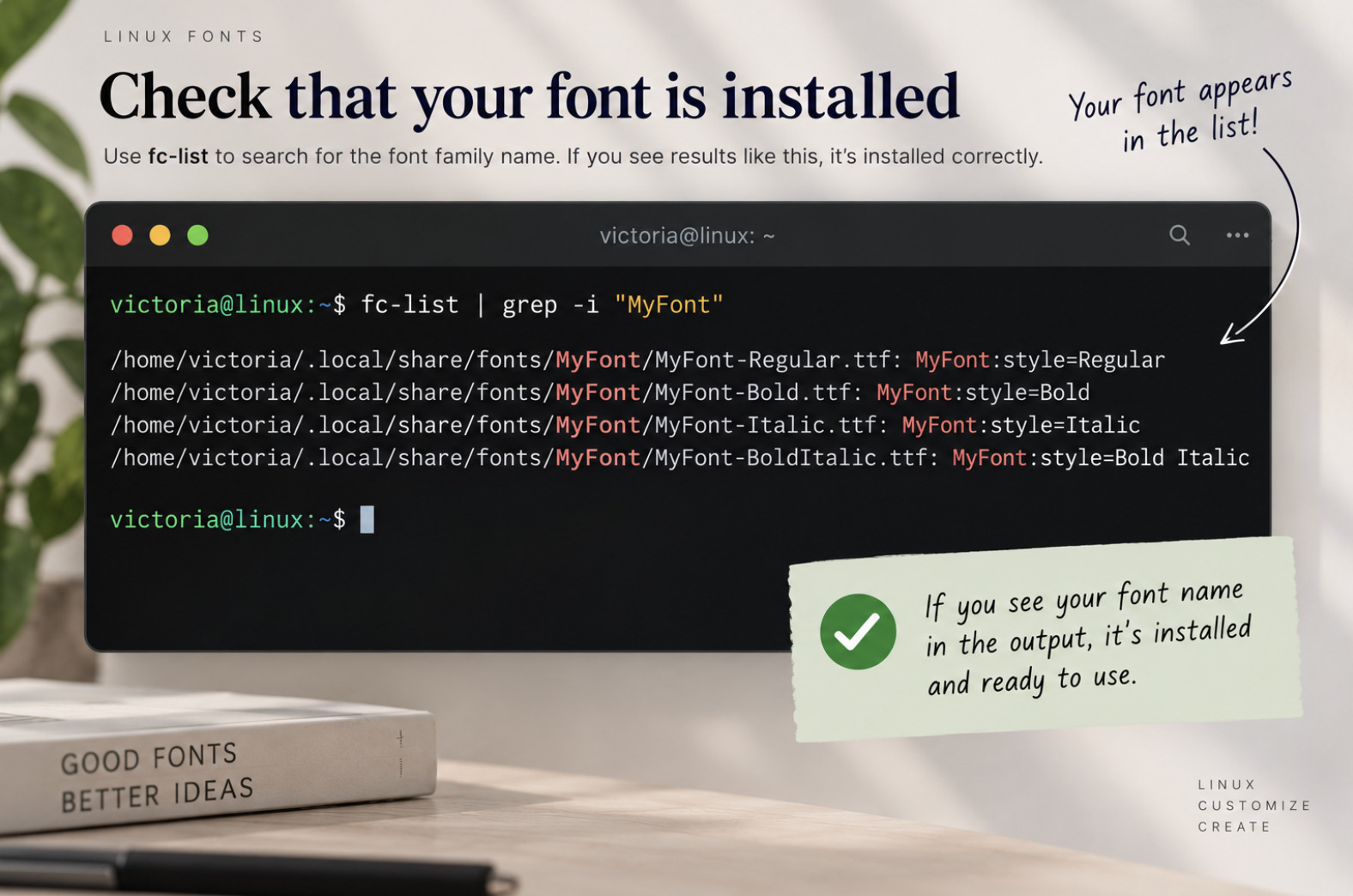
Do not judge success by whether an application shows the font. Ask fontconfig directly. It is the layer every application depends on.
# List every installed family, without duplicates
fc-list : family | sort -u

# Show file paths, families and styles for a specific font
fc-list : family style file | grep -i "MyFont"

# Ask which font fontconfig would actually use for a name
fc-match "MyFont"

# Inspect the properties stored in a font file
fc-query ~/.local/share/fonts/MyFont/MyFont-Regular.ttf
The output of fc-list shows the exact family name, and that is the name applications expect. It often differs from the file name. A file called Inter-VariableFont.ttf may appear under the family "Inter", and typing the file name into an application would find nothing.
The fc-match command is the quickest test for missing fonts. If you ask for a family that is not installed, it returns a fallback font instead, which tells you the request failed and what would be substituted.
Flatpak and other sandboxed apps
Sandboxed applications read fonts through the sandbox rather than directly from your home directory. In practice, Flatpak applications generally see the host's fonts, and fonts in ~/.local/share/fonts are the most consistently visible location for them. If a Flatpak application does not offer a font you just installed, restart the application first. Some minimal or unusual setups, such as NixOS, need extra steps because fonts are not stored in the standard locations, and copying the font files into ~/.local/share/fonts is the usual workaround.
When a font will not show up
Work through this table from top to bottom. Most cases end at the first two rows.
What you seeLikely causeWhat to doThe font is missing from fc-listWrong folder, or stale cacheConfirm the files are under ~/.local/share/fonts, then run fc-cache -fvThe font is in fc-list but not in the applicationThe application loaded its font list at startupQuit the application completely and reopen it, and log out if it still failsThe application shows a different name from the fileFamily name differs from the file nameSearch by the family name shown in fc-list, not by the file nameThe font never installs and no error appearsWeb format such as WOFF2Get the TTF or OTF desktop version, or convert the fileThe font appears in some apps but not GTK appsType 1 or bitmap fontConvert to OpenType, or choose a modern replacementPermission errors in system-wide installsFiles unreadable by other usersRun sudo chmod 644 on the files and 755 on their foldersOnly some styles appearMissing files for bold or italicCopy every weight and style file from the downloadLetters render as empty boxesThe font lacks glyphs for that textInstall a font with broader coverage, such as one from the Noto familyEverything looks stuckCorrupt or outdated cacheRun fc-cache -rv to rebuild the caches from scratch
Two habits prevent most of these problems. Install into the per-user folder, and always check fc-list before blaming the application.
Replacing Windows fonts on Linux
A common reason to install fonts is opening documents that were made on Windows. The document asks for Arial, Times New Roman or Calibri, your system does not have them, and the layout shifts.
The open-source community has metric-compatible replacements, designed so text occupies the same space as the original. Liberation fonts stand in for Arial, Times New Roman and Courier New. Carlito is designed to match Calibri, and Caladea is designed to match Cambria. Most distributions package them, and many install them by default. They look similar to the originals rather than identical, but the line breaks and page counts stay stable, which is the point.
The Microsoft fonts themselves are proprietary and come with license terms. Installing them can be legitimate when you hold a valid license, but do not redistribute them.
Check the license before you install
Fonts are software and design work at the same time. Most fonts distributed for free use the SIL Open Font License, which allows personal and commercial use and modification with conditions. Others are free only for personal use, and some require a paid license for commercial projects or embedding. Read the license file that comes with the download, particularly if you plan to use the font in a product, a website or a document that will be distributed.
Keep your font folder tidy
A few habits keep a font collection manageable as it grows.
One folder per family, named after the family, so you can find and remove fonts later.
Keep the original download in an archive folder in case you need to reinstall.
Delete what you do not use. Removing a font means deleting its file and running
fc-cache -fvagain.Watch for duplicates. Two copies of the same family from different sources can cause the wrong version to load. Use
fc-listto spot repeats.Back up your fonts directory together with your dotfiles, so a fresh installation restores your working environment in minutes.
Frequently asked questions
Where do fonts go on Linux? For one user, put them in ~/.local/share/fonts. For all users, put them in /usr/local/share/fonts. Then run fc-cache -fv to refresh the font cache.
Do I need to restart after installing a font? Usually you only need to restart the application. Some applications cache their font list until they are fully closed, and a few need a new login session.
What does fc-cache do? It scans font directories and builds the cache fontconfig uses to find fonts quickly. The -f option forces a rescan and -v prints the progress.
Can I install TTF and OTF fonts on any distribution? Yes. Both formats work on Ubuntu, Fedora, Arch, Debian and virtually every other distribution, because they rely on fontconfig rather than distribution-specific tools.
Is ~/.fonts still valid? It is deprecated. It may still work on your system, but ~/.local/share/fonts is the supported location and the safer choice.
Why does my font show up in the terminal but not in my editor? Applications read different font settings. Confirm the exact family name with fc-list, select that name in the application's settings and restart it. Terminals and code editors often expect monospace families, so check that the font is actually monospaced.
How do I remove a font? Delete its file from the font directory and run fc-cache -fv. If it was installed by a package, remove it with your package manager instead.
Can I install a font without administrator rights? Yes. The per-user folder in your home directory needs no special permissions, which is one more reason to prefer it.
The short version
Put fonts in ~/.local/share/fonts, run fc-cache -fv, and confirm with fc-list. Use the system-wide folder only when other users or services need the font, prefer packages when they exist, and read the license before you use a font in real work. When something goes wrong, ask fontconfig first and the application second, because the answer is almost always visible in one command.